ABOUT
Music Discovery
Most playlist tools hand you twenty tracks and leave you to guess why. Music Discovery works the other way round: you choose where to start and how far to reach, every track shows the evidence that put it there, and every step can be adjusted, extended or taken somewhere new. Here is a discovery from start to finish.
STEP 1
Pick a starting point
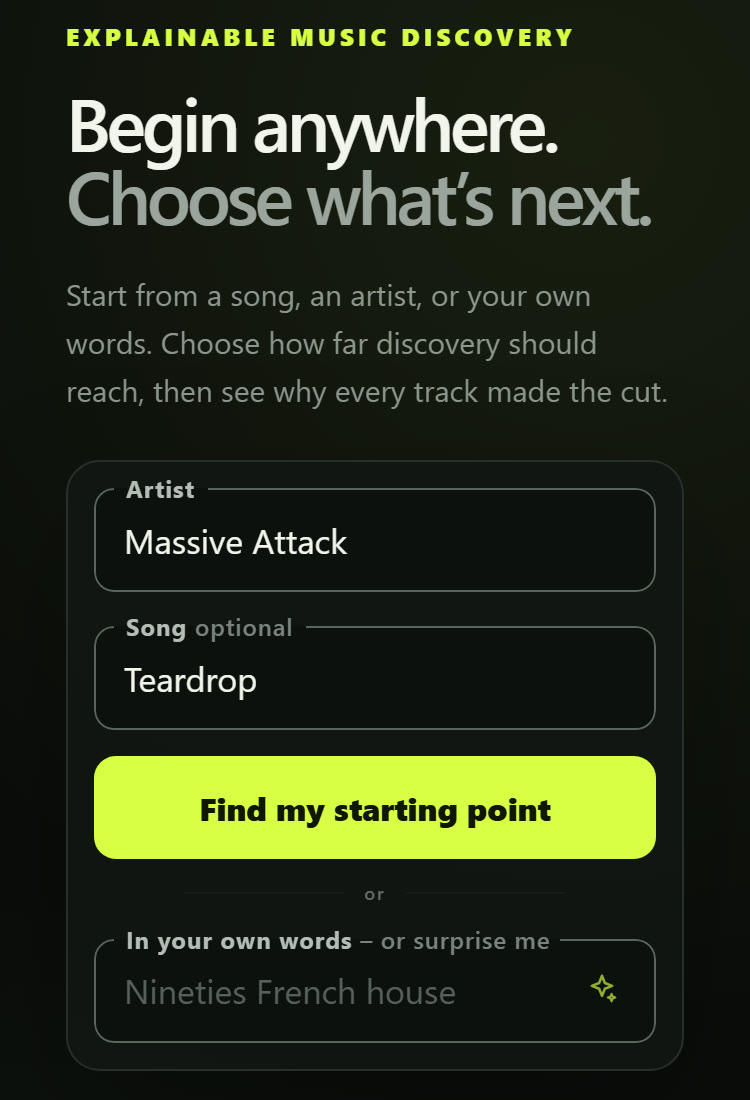
Type an artist, and a song if you have one in mind. Suggestions appear as you type; if a name could mean several recordings — the album version, a live take, a later edit — you are asked which one did you mean, so the discovery starts from exactly the sound you had in mind.
No name in mind? Describe it in your own words instead: “trip-hop with a female singer, late nineties”. The next screen shows, phrase by phrase, which styles, decades and other settings your words were turned into, so nothing is applied that you cannot see and change. Leave the field empty and press the sparkle to be surprised: it picks a lesser-played artist near the ones you have chosen before.
The menu at the top sets your music service. It decides where a track opens and where a finished playlist is saved; it never changes the playlist itself.
STEP 2
Choose how far to reach
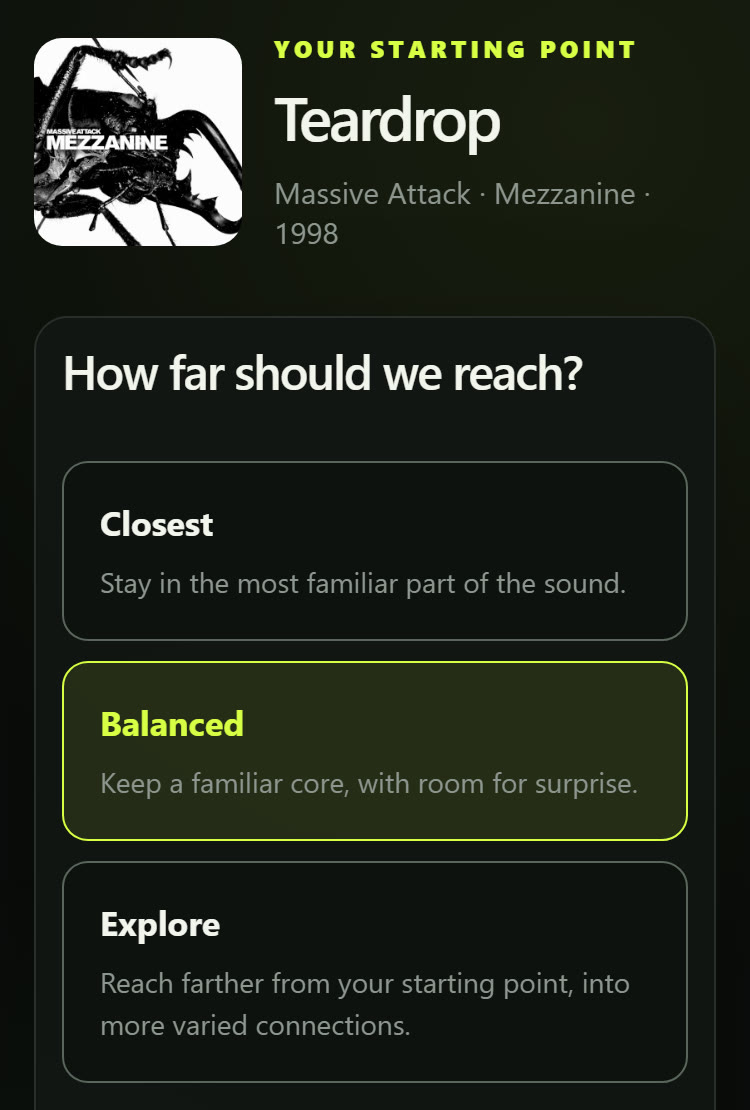
Closest stays in the most familiar part of the sound. Balanced keeps a familiar core with room for surprise. Explore reaches further out, into more varied connections. Not sure? Balanced is a good first pass; you can change it at any time without starting over.
STEP 3
Refine, if you like
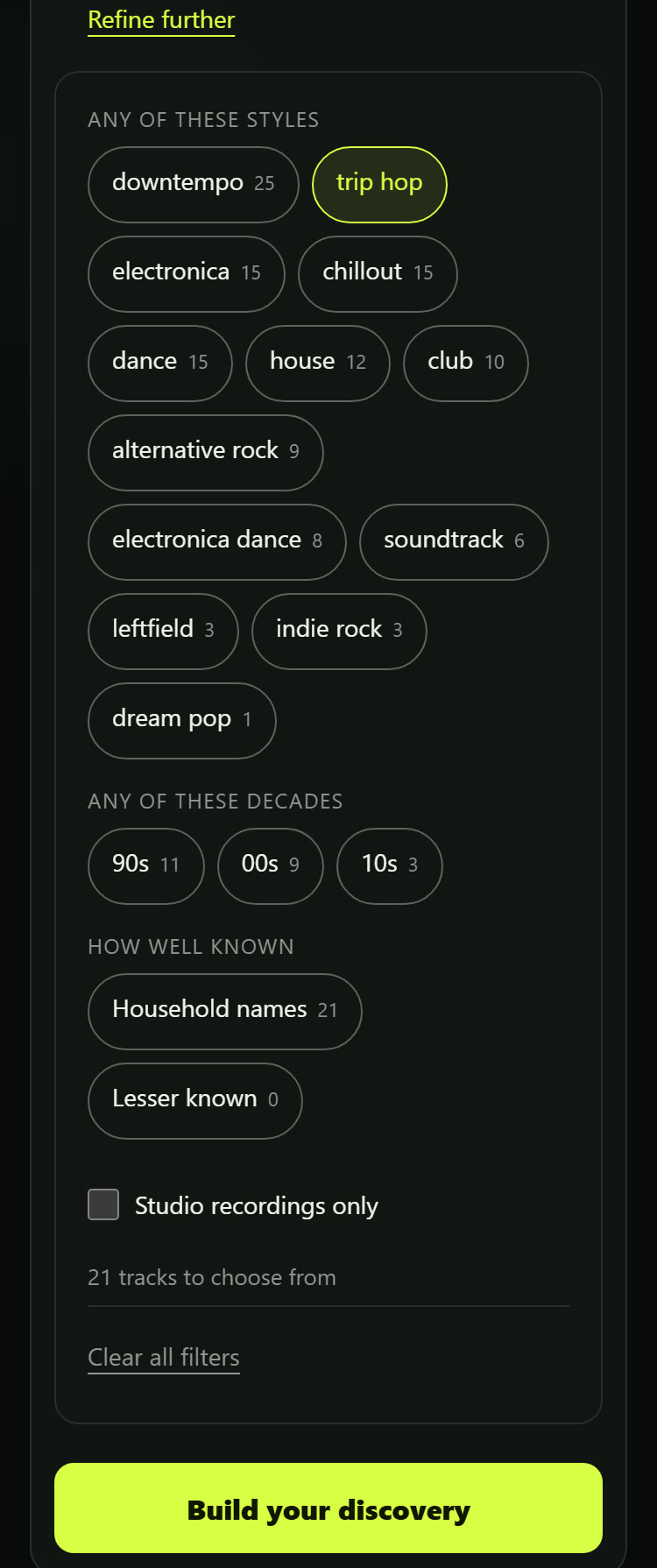
Refine further narrows the same pool without changing how far it reaches:
- Styles and decades — pick one or several.
- How well known — household names, well known or lesser known, independent of the range: Closest with “lesser known” means the same sound from artists you have probably not heard of.
- Studio recordings only — sets aside live takes and bootlegs that streaming services often do not carry.
Every option shows how many tracks it would leave, so you see the cost of a choice before you make it. Filters belong to this starting point and are cleared when you start from something new.
STEP 4
Listen your way through
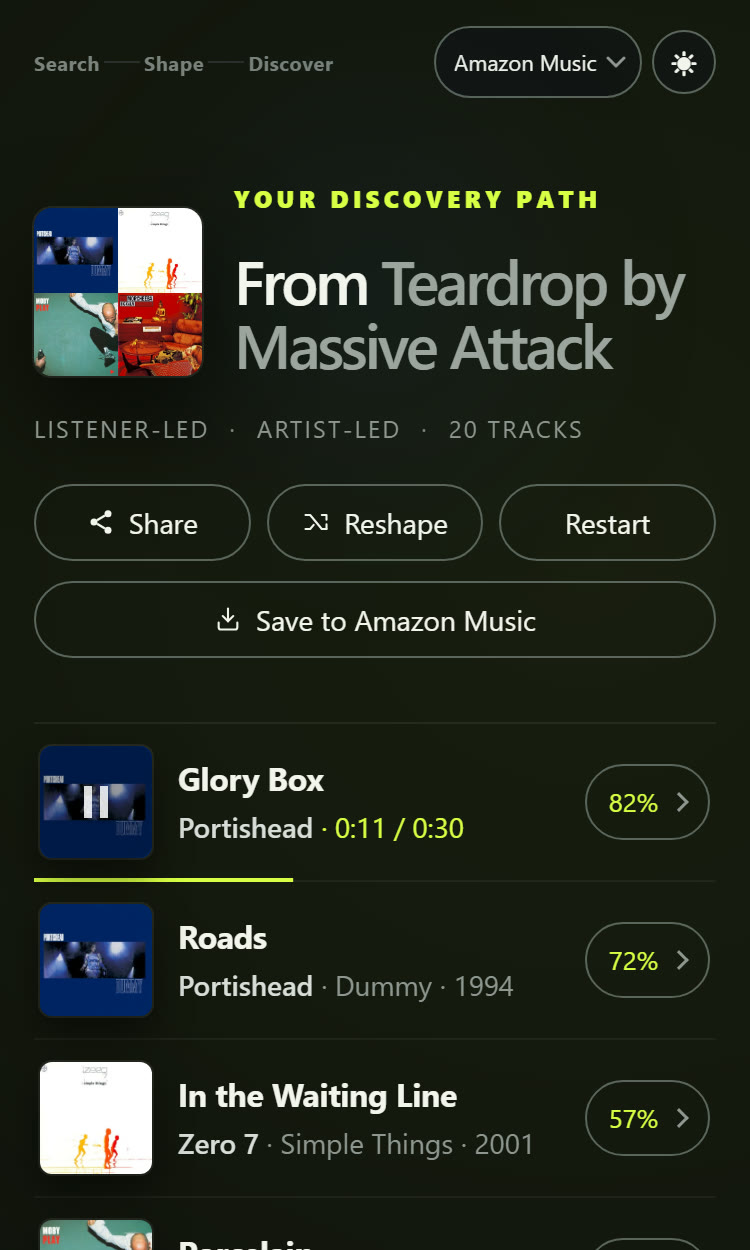
Press Build your discovery and the playlist appears, ordered by how well each track fits your starting point — that is the percentage on the right.
Press a cover to hear a 30-second preview from Deezer. When it ends, the next track starts by itself, so you can let the whole list play through and simply stop at whatever catches your ear. Press a title to open the full track on your music service; the preview pauses so the two do not play over each other.
STEP 5
Ask why
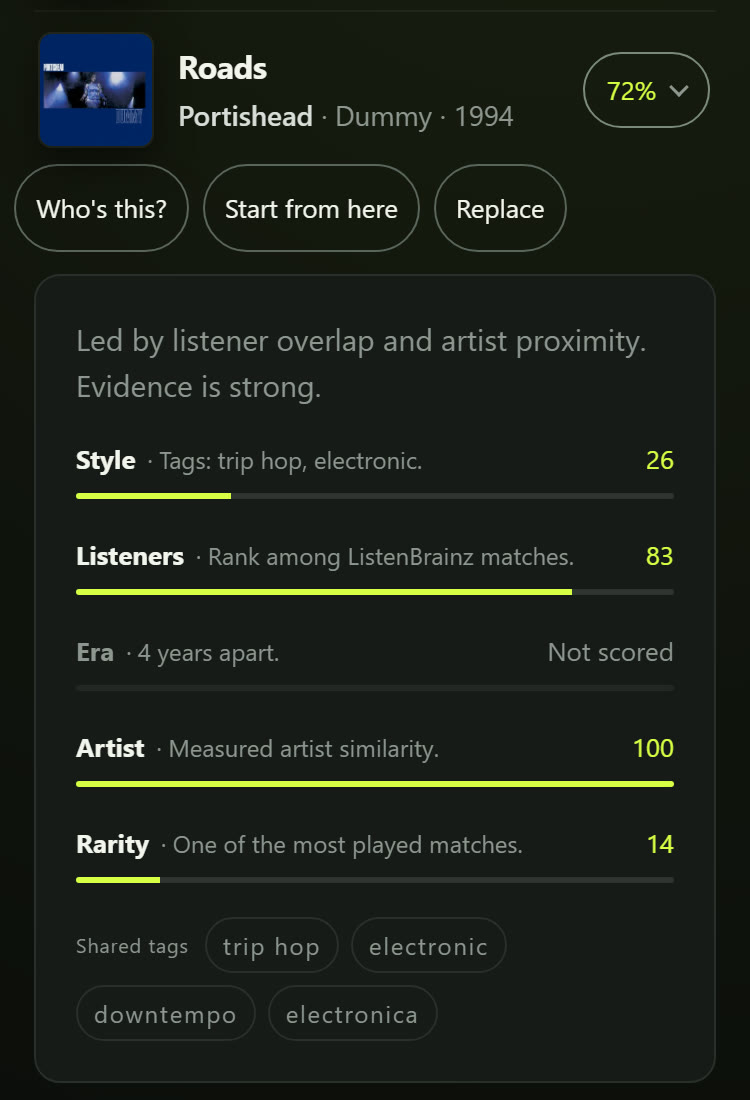
Press the percentage and the track explains itself. A bar for each kind of evidence shows how style, shared listeners, era, artist similarity and rarity contributed, with the tags the two have in common and a note on how strong the evidence is. A signal your chosen range does not weigh says “not scored” rather than taking credit it did not earn.
This is where you decide what to do next: Who’s this? looks the artist up, Start from here makes this track your new starting point, and Replace swaps it out (step 7).
STEP 6
Go further
At the end of the list, Add 10 more extends the playlist from the same starting point, up to 40 tracks.
Keep going is the road out. Famous starting points tend to lead back to famous neighbours, so this starts a fresh discovery from the least-known artist in your playlist, keeping your filters. Press it again and again to travel step by step into territory you would never have searched for; the trail under the heading shows where you came from and takes you back one step at a time.

STEP 7
Make it yours
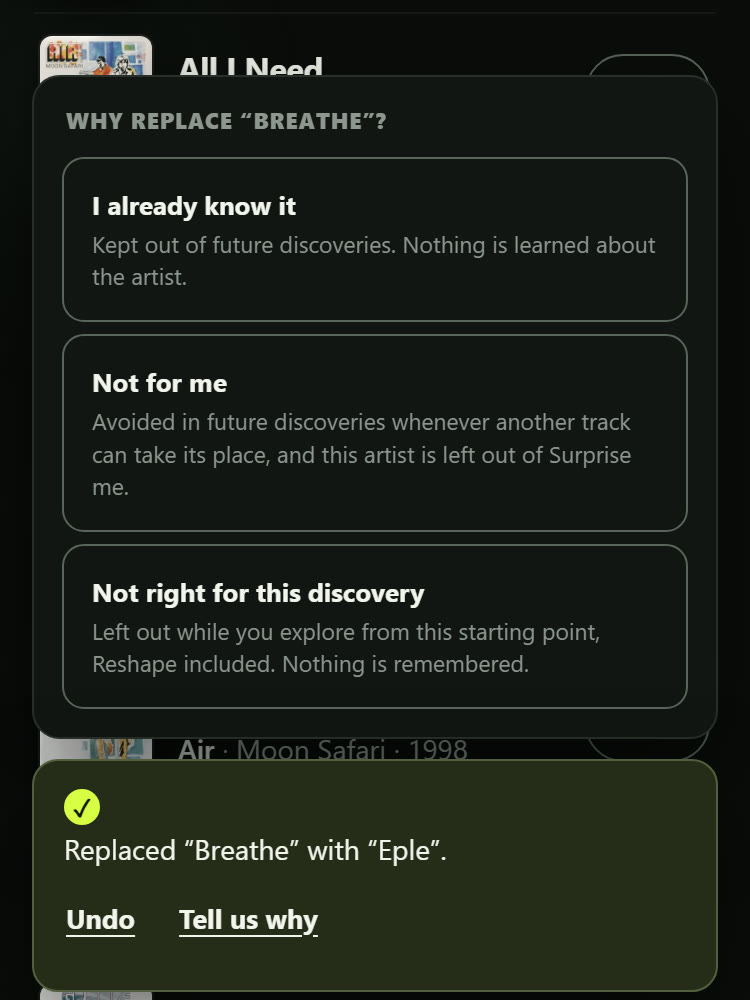
Replace swaps one track for the next-best candidate. Afterwards you are asked, optionally, why: I already know it keeps that recording out of later discoveries; Not for me avoids it whenever something else can take its place and leaves the artist out of surprises; Not right for this discovery keeps it out only while you explore from this starting point. Ignoring the question is a fine answer too, and Undo takes it all back. What you teach it stays in your browser — there is no account.
Reshape takes you back to the range and filters. Change them for a different question, or keep them and build again: the next round brings fresh tracks rather than the same twenty. Restart clears everything for a new search.
STEP 8
Share it or save it
Share creates a link that reproduces this exact playlist, replacements and all, for anyone who opens it.
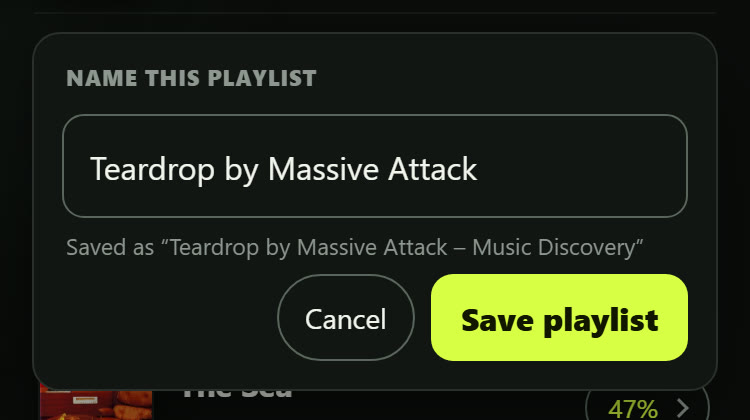
Save to … asks for a name and hands the track list to Soundiiz, a playlist transfer service. Soundiiz shows every track for review, lets you deselect anything, and transfers the rest into your library on the service you picked. Soundiiz owns the connection to your streaming account; Music Discovery never sees your login, and the review page expires after 24 hours.
Install it as an app
Music Discovery can live on your home screen or desktop and open in its own window, without the browser around it.
- Chrome on a computer: open the start page, then press the install icon at the right end of the address bar, or open the ⋮ menu and choose Cast, save and share → Install page as app.
- Chrome on Android: open the ⋮ menu and choose Add to home screen, then Install.
- iPhone and iPad: in Safari, press the Share button and choose Add to Home Screen. The same works from the Share button in Chrome on iOS.
What happens behind the scenes
Your starting point is matched to one specific recording or artist in MusicBrainz, the open music encyclopedia. ListenBrainz then supplies “people who listened to this also listened to” connections, with Last.fm filling gaps, and each candidate is scored on the signals you see in the Why panel. A description in your own words is read by a small language model from a European provider, which only chooses search terms — styles, decades and the like, checked against MusicBrainz’s own genre list — and never picks tracks. Nothing is streamed from this site: it produces the recommendation, and your music service plays it. See the privacy page for what is sent and what is stored.
Credits
Recording, artist and release identities come from MusicBrainz. Recommendations come from ListenBrainz, with Last.fm as a secondary source. MusicBrainz and ListenBrainz are projects of the MetaBrainz Foundation, and their data is used under their licences: MusicBrainz core data is in the public domain (CC0), while the tags and genres used for matching are licensed CC BY-NC-SA 3.0. Last.fm data is used through the Last.fm API under its terms of service for non-commercial use; Last.fm does not endorse this project. Links to Wikipedia are resolved through Wikidata, a Wikimedia Foundation project; this site links to Wikipedia and Last.fm pages but reproduces no text from them. Album covers are served by the Cover Art Archive via the Internet Archive; the images remain the copyright of their respective owners, and none are stored here. Descriptions in your own words are read by a language model from Mistral, a European provider. Playlists are transferred to your streaming library by Soundiiz, and full tracks play on the service of your choice.
 30-second previews are provided by Deezer for private, personal listening only. Nothing is loaded from Deezer until you press a cover.
Similar-track and similar-artist data is powered by Last.fm.
Hero video by padrinan, via Pixabay.
Ready? Start from a song, an artist or a few words, and see where it leads.
Start discovering →